 AdsKicker
Blocks ads and trackers
Requests to known ad and tracking networks are dropped before they load, and leftover ad slots are hidden. The toolbar badge counts what was blocked on each page.
Free extension for Chrome, Edge, Brave, and Firefox
AdsKicker stops ad and tracking requests before they load, hides leftover ad slots, blurs suspected adult images, and asks before you open adult links. It all happens in your browser, and nothing is collected.

What it does
Requests to known ad and tracking networks are dropped before they load, and leftover ad slots are hidden. The toolbar badge counts what was blocked on each page.
Images, video posters, and backgrounds whose address, description, or link points at adult content are blurred. Click one to see it, or report it as safe.
Before you follow a link to a known adult site, AdsKicker asks whether you're 18 or older. It's a reminder, not a lock.
You're in charge
How to
Most things start from the AdsKicker button in the toolbar. Pin it from the puzzle-piece menu so it's always there.
Click the AdsKicker button and turn off Protect this site, or choose Pause for 1 hour. You can also press Alt+Shift+K. Turn the switch back on to resume.
On the site, click the AdsKicker button, then the red Block this site button, and confirm. The site and its subdomains won't open anymore, even with AdsKicker switched off.
Blocking can't be undone from the toolbar on purpose. Open Settings and lists from the AdsKicker button (or the button on the blocked page), find the site under Blocked sites, and click Unblock.
In Settings and lists, open Built-in list under Blocked domains or Adult sites, and click Mute next to the entry. Click Unmute to turn it back on.
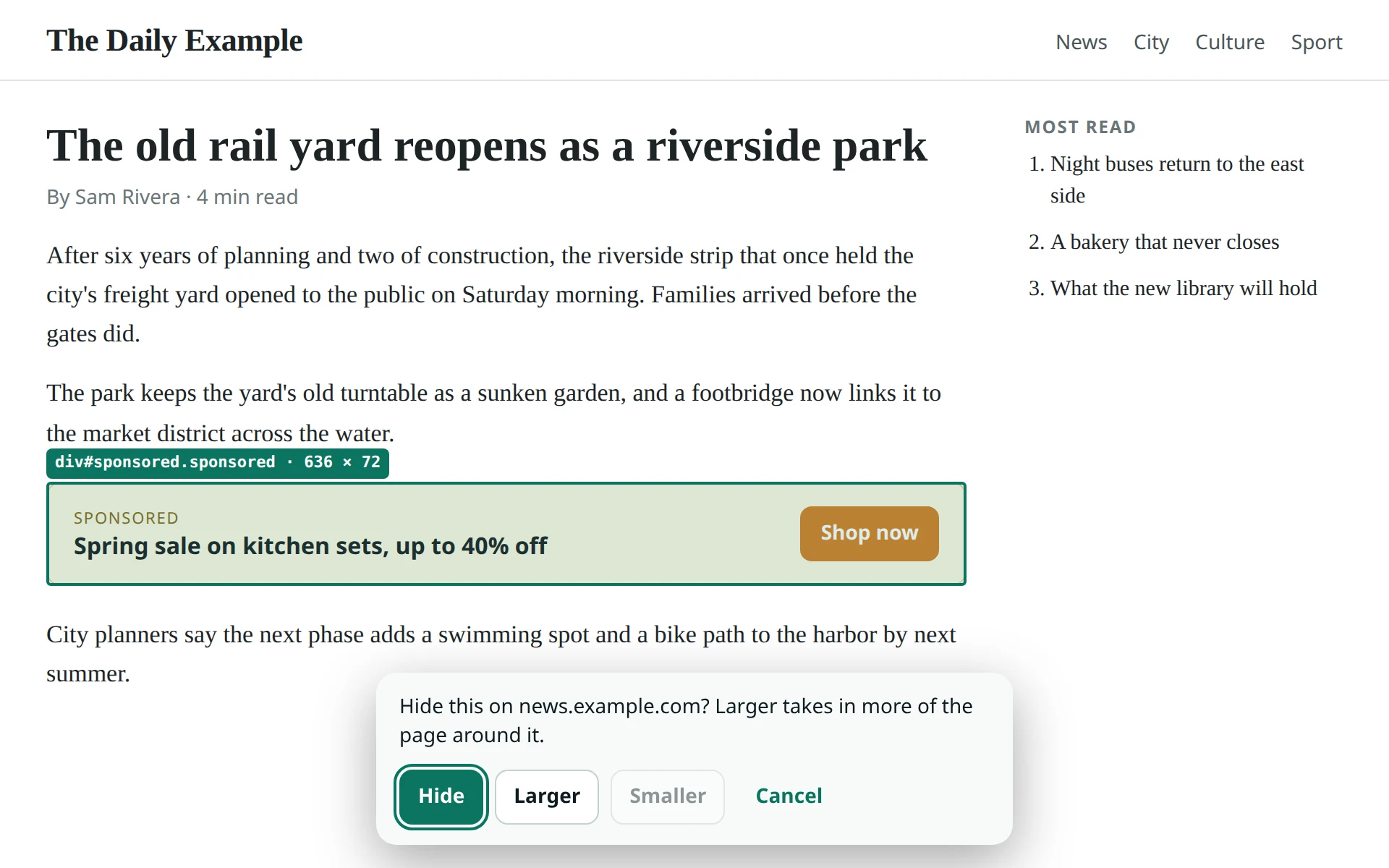
Right-click it and choose Hide this element…, use Larger to take in the box around it, then click Hide. To bring it back, use Undo, or Show again in the settings.
Click the image and choose Show image or Report as safe. To blur one AdsKicker missed, right-click it and choose Blur this image.
Private by design
AdsKicker has no servers, no accounts, and no analytics, and it makes no network requests of its own. It reads pages only to hide ads and check images and links, and it does that on your device.
Read the privacy policyInstall
AdsKicker isn't in the browser add-on stores yet, so you load it yourself. It works the same way.
chrome://extensions and turn on Developer mode. In Edge, open edge://extensions; in Brave, brave://extensions.Firefox: open about:debugging#/runtime/this-firefox, click Load Temporary Add-on, and choose the zip itself, no unzipping needed. Firefox removes temporary add-ons when it closes.
Good to know